SLAM & Navigation: Turtlebot Demo in Simulation
Last Update: 2024-10-29
0. Setup your Envs (Turtlebot3 in Simulation)
- Make sure you installed gazebo
sudo apt install ros-humble-gazebo-*
- Install dependencies
sudo apt install ros-humble-turtlebot3-gazebo ros-humble-turtlebot3-teleop ros-humble-turtlebot3-example ros-humble-turtlebot3-cartographer ros-humble-cartographer ros-humble-cartographer-ros ros-humble-slam-toolbox ros-humble-nav2-bringup
- Add the following in yout shell configuration(.bashrc)
source /usr/share/gazebo/setup.sh
export TURTLEBOT3_MODEL=burger
export GAZEBO_MODEL_PATH=$GAZEBO_MODEL_PATH:/opt/ros/humble/share/turtlebot3_gazebo/models
Make sure your ROS_DOMAIN_ID is unique, or turn off your wifi to avoid conflict with others’ ros2 communication
Check your installation
Refresh your shell, then:
ros2 launch turtlebot3_gazebo turtlebot3_world.launch.py
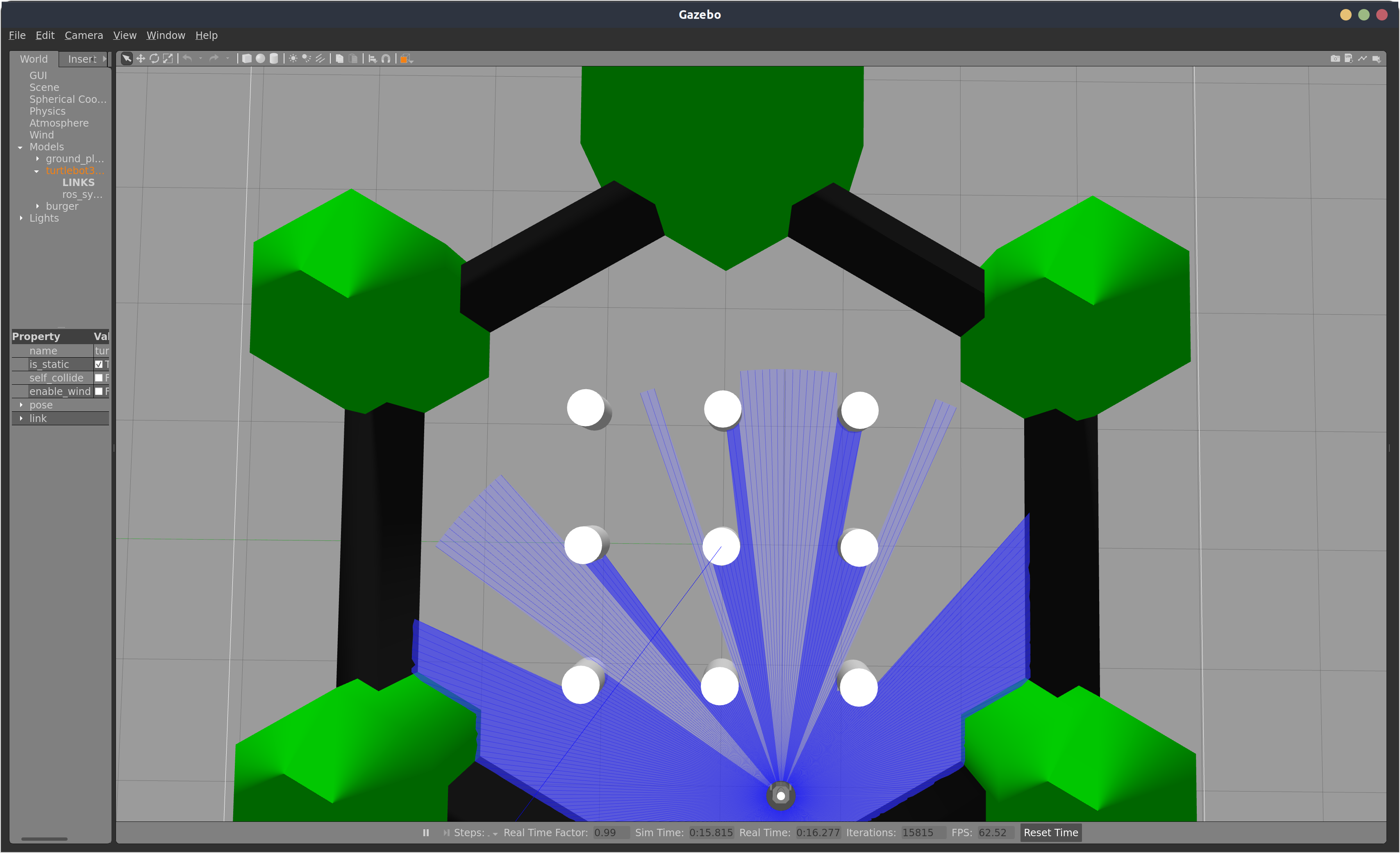
If nothing wrong happened, you are able to interact with the gazobo simulation app:
1. (SLAM) Building a “Map”
a. Launch the turtlebot3 gazebo world
ros2 launch turtlebot3_gazebo turtlebot3_world.launch.py
b. Launch SLAM Algorithms
- Option 1: turtlebot3 cartographer
Cartographer is a system that provides real-time simultaneous localization and mapping (SLAM) in 2D and 3D across multiple platforms and sensor configurations.
- https://github.com/cartographer-project
- https://ros2-industrial-workshop.readthedocs.io/en/latest/_source/navigation/ROS2-Cartographer.html
ros2 launch turtlebot3_cartographer cartographer.launch.py
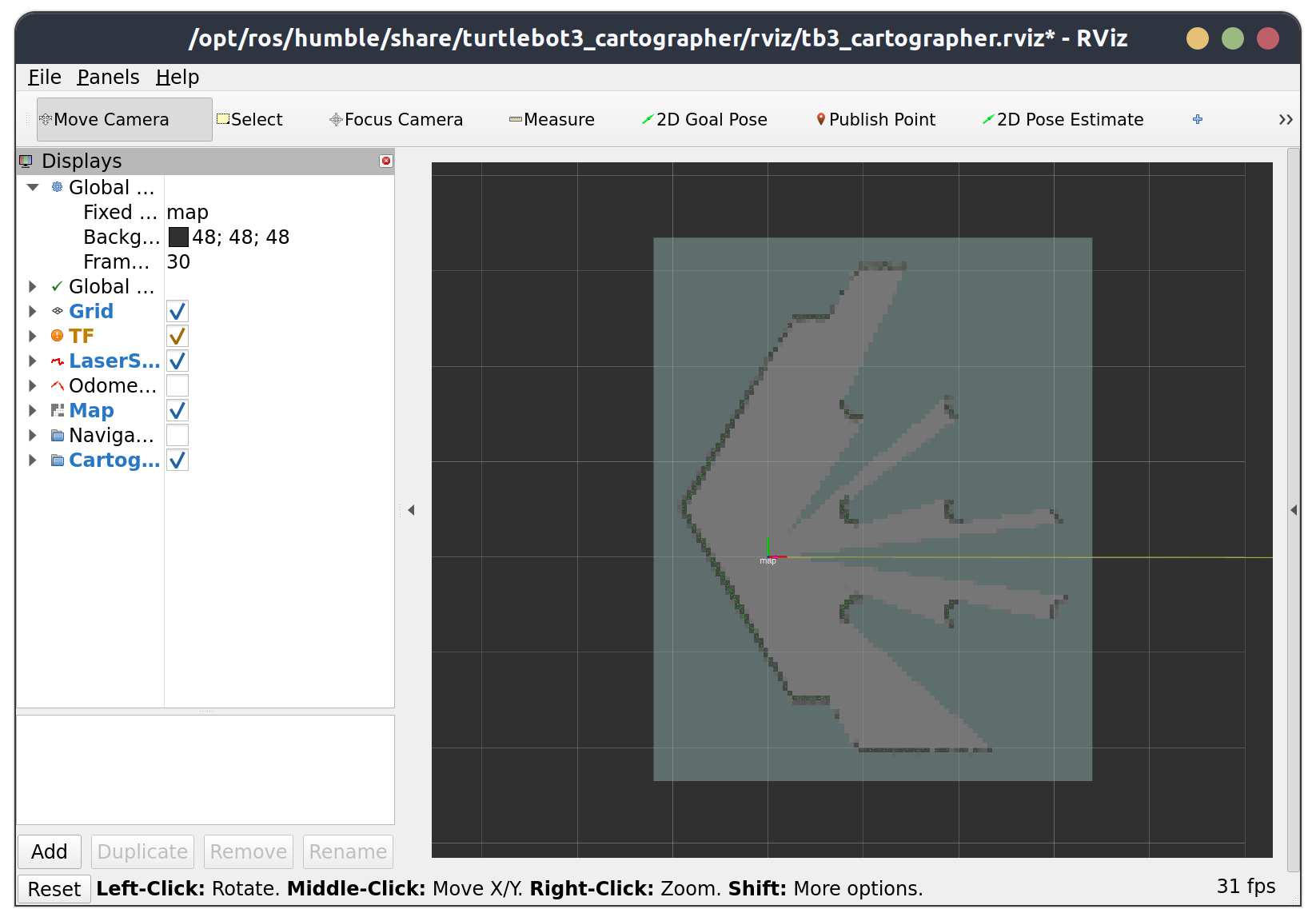
Rviz2 will be opened and should be look like this:
- Option 2: slam toolbox
Slam Toolbox is a easy-to-use slam project for ROS, desinged for lifelong mapping and localization in potentially massive maps.
- https://github.com/SteveMacenski/slam_toolbox
ros2 launch slam_toolbox online_async_launch.py
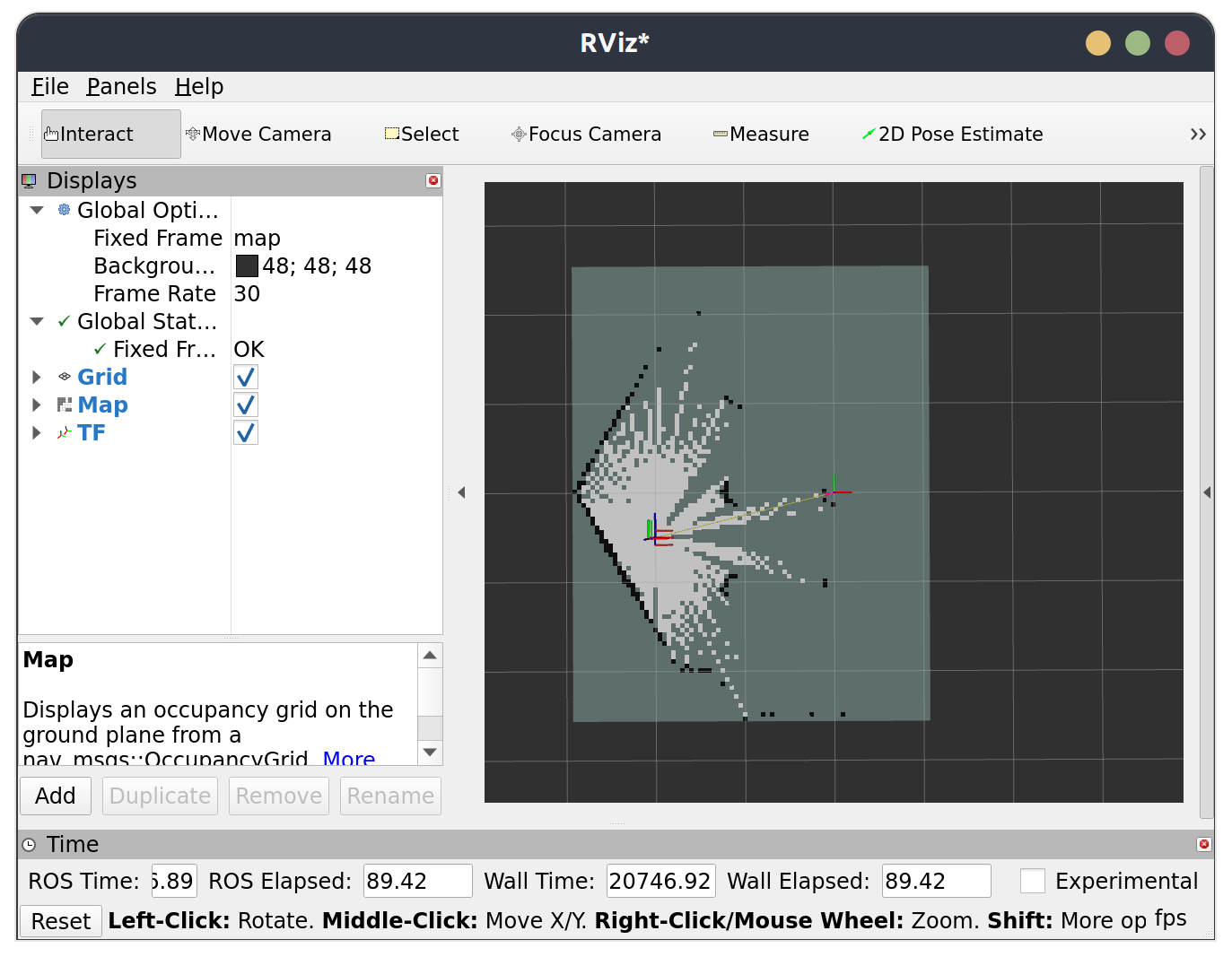
Then, open another terminal to open rviz2, then configure your rviz2 manually:
c. Control the robot to move around the environment to build the map
ros2 run turtlebot3_teleop teleop_keyboard # or: ros2 run teleop_twist_keyboard teleop_twist_keyboard
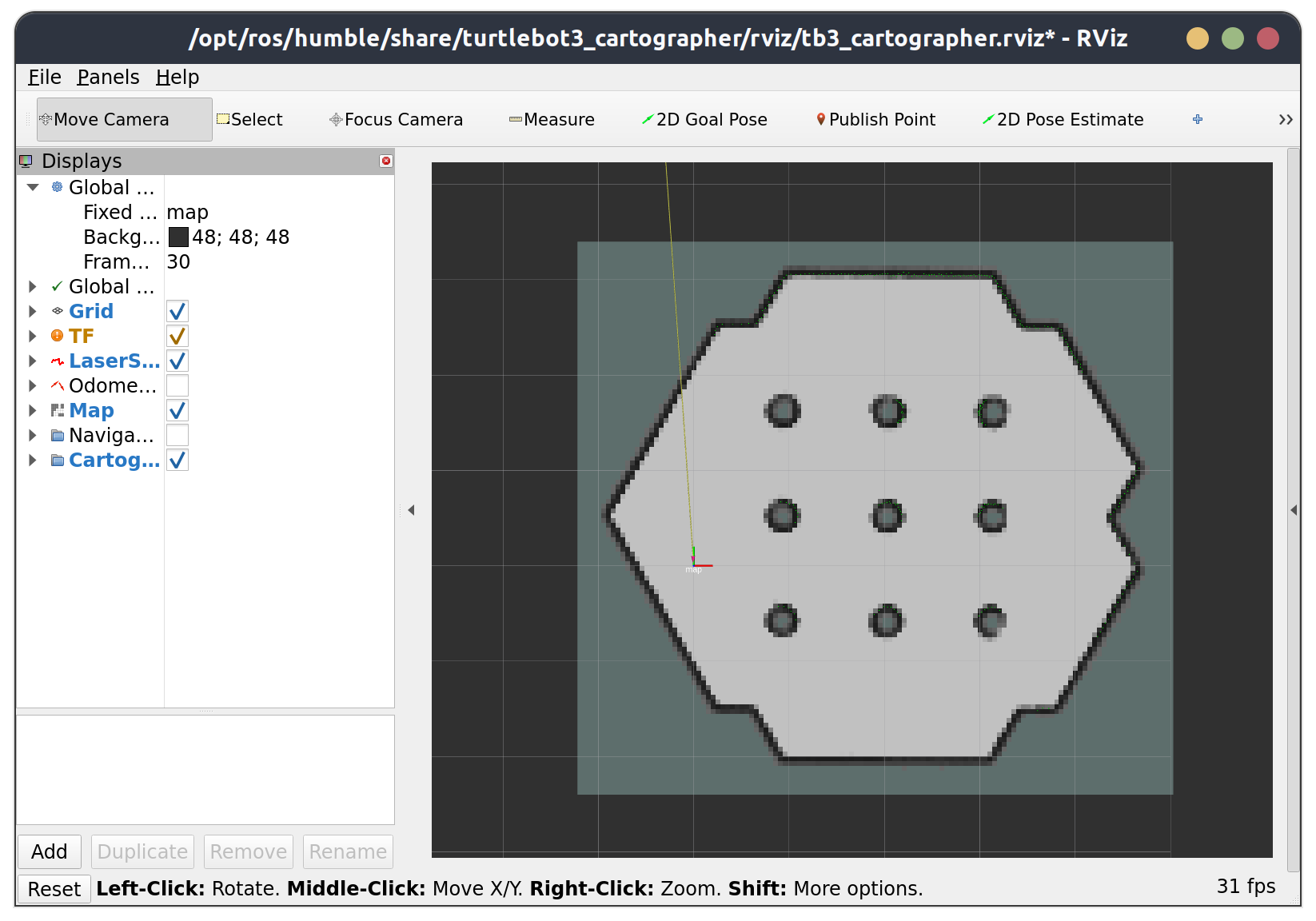
Drive the robot until the map is fully constructed:
d. Save the map
ros2 run nav2_map_server map_saver_cli -f tb3_map
Run the above command, and the map (a pgm picture file and a yaml file) will be saved in your current working directory.
You are encouraged to run ros2 run nav2_map_server map_saver_cli --help to check the detailed usage of map_saver_cli, the output should be like this:
Usage:
  map_saver_cli [arguments] [--ros-args ROS remapping args]

Arguments:
  -h/--help
  -t <map_topic>
  -f <mapname>
  --occ <threshold_occupied>
  --free <threshold_free>
  --fmt <image_format>
  --mode trinary(default)/scale/raw

NOTE: --ros-args should be passed at the end of command line
2. (Navigation) Use Navigation2 to Navigate the Robot
a. Place the provided my_nav2_pkg in the src folder of your colcon workspace, then build
The my_nav2_pkg includes a built map of the turtlebot3 world, a nav2 param yaml file, a python script, as well as a launch file for starting navigation.
my_nav2_pkg
├── launch
│   └── tb3_nav2_launch.py
├── maps
│   ├── tb3_map.pgm
│   └── tb3_map.yaml
├── my_nav2_pkg
│   ├── __init__.py
│   └── nav_to_pose.py
├── package.xml
├── params
│   └── nav2_params.yaml
├── resource
├── setup.cfg
├── setup.py
└── test
b. Navigate your turtlebot3 interactively in gazebo simulation environment
a. Launch the turtlebot3 gazebo world
ros2 launch turtlebot3_gazebo turtlebot3_world.launch.py
b. Launch tb3_nav2_launch.py in my_nav2_pkg
Surce your colcon workspace
- Run:
ros2 launch my_nav2_pkg tb3_nav2_launch.py - If you see like this, then everything runs well;
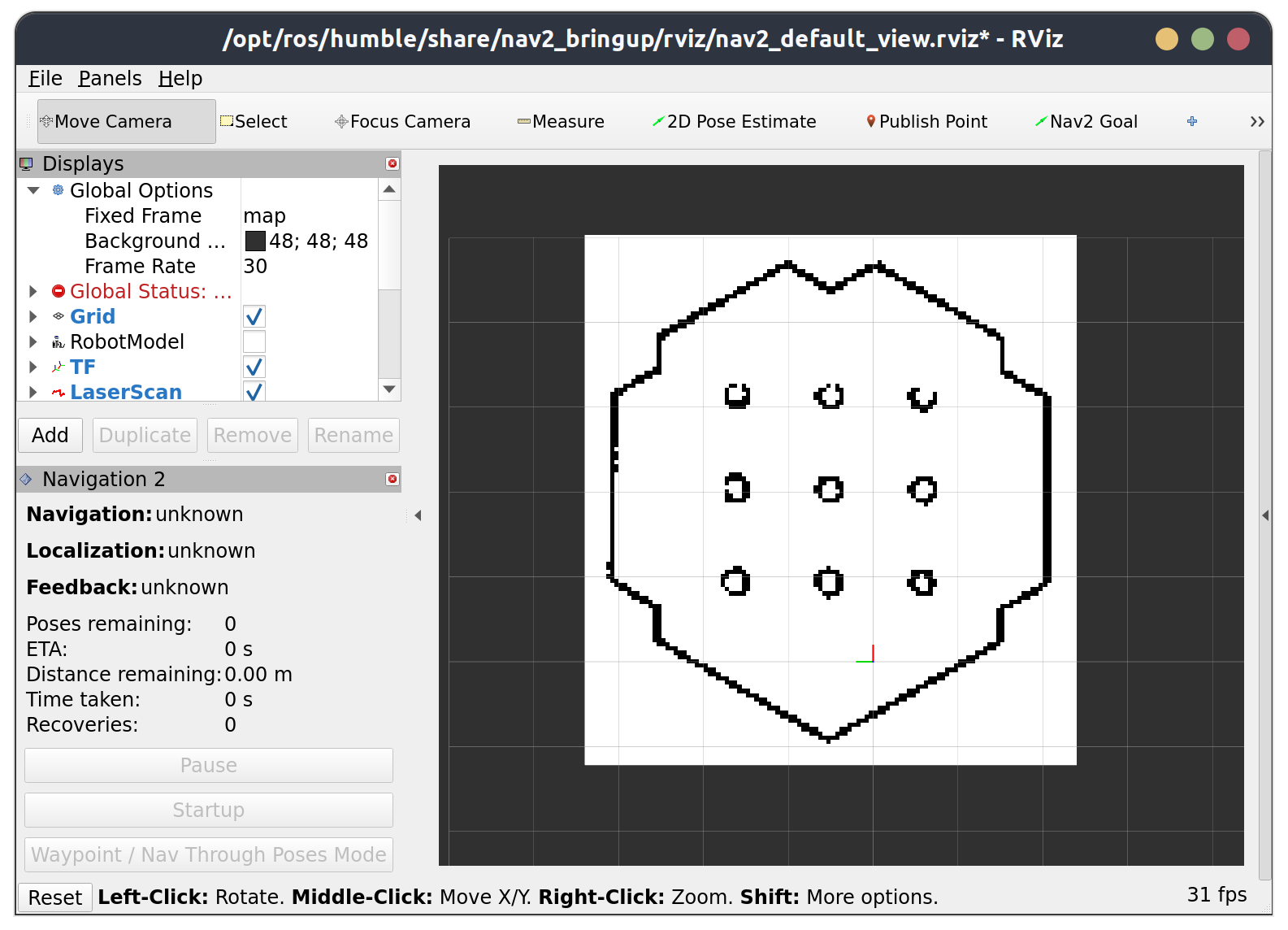
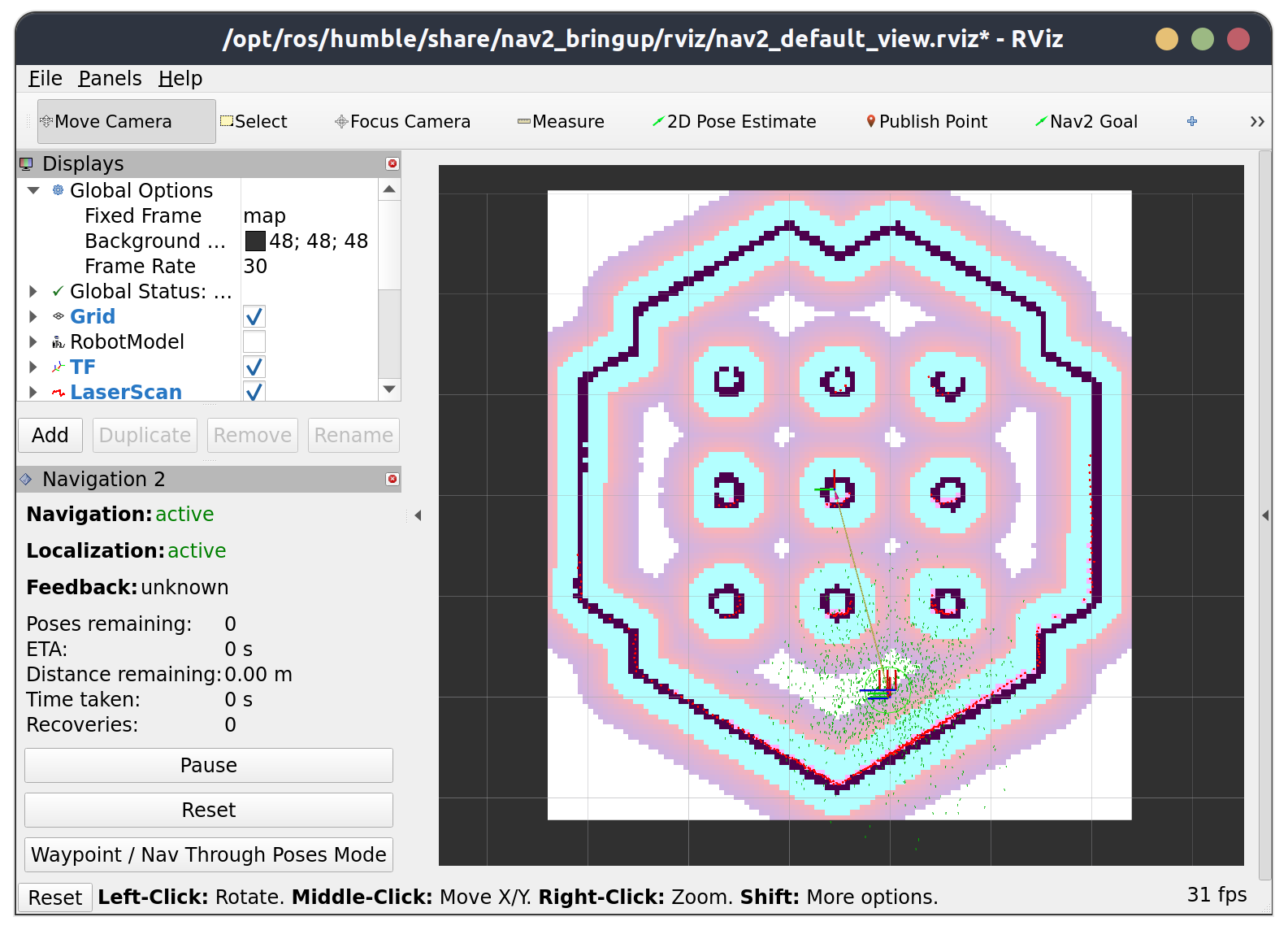
Then, click 2D Pose Estimate button, and set the approximate position and orientation of the robot in rviz2:
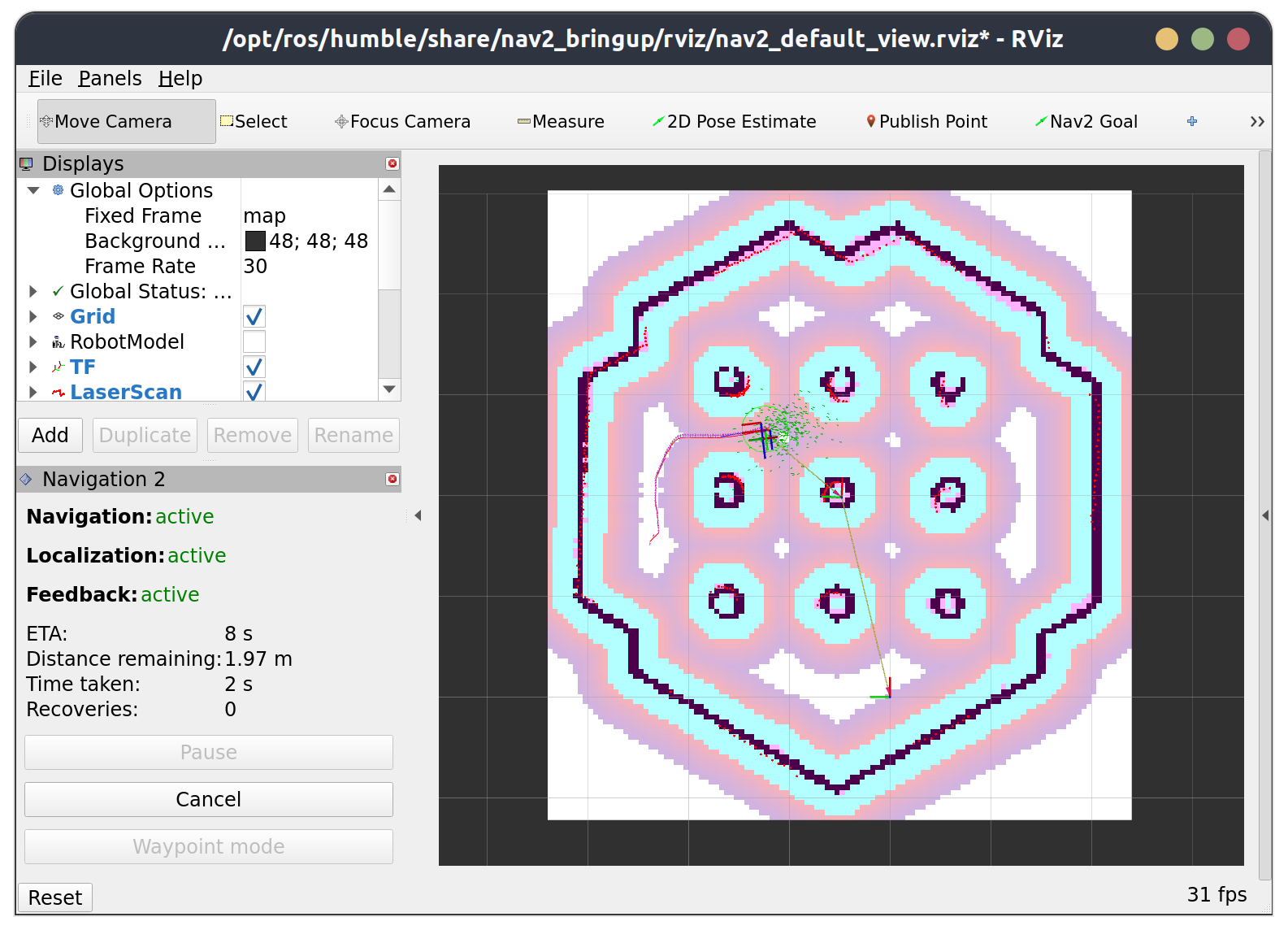
Now, you can use click the Nav2 Goal button then set the goal position and orientation, then the robot will automatically go there:
c. Use nav2 API to automatically navigate the robot
a. ROS2 CLI
Try this in a now terminal, the robot will automatically reach the goal pose and orientation you just sent
ros2 action send_goal /navigate_to_pose nav2_msgs/action/NavigateToPose "{pose: {header: {frame_id: map}, pose: {position: {x: 1, y: 0}}}}" --feedback
ROS2 Action: you can think ros2 action is an advanced version of ros2 service, which has a feedback mechanism after a client sent goal to its server. To check detailed info about ros2 action, browse on the internet by yourself.
NavigateToPose: run ros2 interface show nav2_msgs/action/NavigateToPose to see how this action file is defined.
b. rclpy API
For your final project this semester, I am sure you won’t want to type the cli commands to control your robot. While, writing scripts to program your robot is a good and intuitive choice.
There is a nav_to_pose.py example script provided to you, run the script and expolore what will happened.
3. In-class Practises
Task 1
ros2 launch turtlebot3_gazebo turtlebot3_world.launch.py and ros2 launch my_nav2_pkg tb3_nav2_launch.py takes to steps, compose them into one launch file, then check if your launch file works well.
Task 2
Make sure the launch file you made in Task1 works, then write a python script to program the robot to walk along a rectangle in simulation. You may find this task very helpful in your final project.
Links for reference
- https://gitee.com/gwmunan/ros2/wikis/pages?sort_id=10322758&doc_id=4855084
- https://docs.nav2.org/index.html
- https://ros2-industrial-workshop.readthedocs.io/en/latest/_source/navigation/ROS2-Navigation.html
- https://ros2-industrial-workshop.readthedocs.io/en/latest/_source/navigation/ROS2-Cartographer.html